
Receipt organisation
How to summarise expenses by month and category
Build expense summaries with currencies kept separate. Includes a formula workbook and a Google Sheets pivot-table walkthrough.
By Pengwu · · 5 min read
The takeaway
Filter by both month and currency before adding categories. Keep the source rows available to explain each total.
Start with real dates, consistent category labels, numeric amounts and explicit currencies. Then group the reviewed rows for the period you need.
Try the category summary
Change the month or currency, then open the source rows behind the total. Currency groups are kept separate.
AUD 299.309 recorded entries in this sample selection
- WorkspaceAUD 90.00
- SuppliesAUD 85.60
- SoftwareAUD 72.00
- TravelAUD 37.20
- DeliveryAUD 14.50
Show included source rows
- E002 · CloudKite Example2026-09-02 · Studio · AUD 24.00Original reference: R-002.pdf
- E003 · Transit Example2026-09-03 · Alder · AUD 18.60Original reference: R-003.pdf
- E004 · Paper Trail Example2026-09-05 · Alder · AUD 42.80Original reference: R-004.pdf
- E005 · Paper Trail Example2026-09-05 · Birch · AUD 42.80Original reference: R-005.pdf
- E006 · FormDesk Example2026-09-10 · Birch · AUD 12.00Original reference: R-006.pdf
- E007 · Workshop Space Example2026-09-11 · Alder · AUD 90.00Original reference: R-007.pdf
- E008 · WebHost Example2026-09-15 · Studio · AUD 36.00Original reference: R-008.pdf
- E009 · Parcel Example2026-09-20 · Birch · AUD 14.50Original reference: R-009.pdf
- E011 · Transit Example2026-09-30 · Alder · AUD 18.60Original reference: R-011.pdf
Fictional practice data. Changes stay in this example; no records are saved.
Excel and Google Sheets can both support this workflow. The fictional example workbook uses formulas for its summary. A pivot table is another way to explore the same source rows; instructions for a Google Sheets example follow below.
1. Give the source table a predictable shape
Open Expenses in the workbook. Row 1 contains headers and rows 2–13 contain twelve fictional entries. Date is B, category E, currency G and amount H. The original-reference column contains teaching labels, not attached files.
Keep one expense per row. Do not include category subtotal rows inside the source table, because a later summary could add both the purchases and their subtotals. Keep dates sortable, amounts numeric and currency codes explicit. Use the CSV import guide if those values arrive incorrectly.
The same label should mean the same thing throughout the table. “Software” and “Software subscriptions” will become separate categories unless you review and standardise them. Keep any original description available when cleaning labels.
2. Use the workbook's month and currency controls
On Summary, B5 holds the first day of the month and E5 holds the currency. Start with 2026-09-01 and AUD. The example uses inclusive month-start and exclusive next-month-start date bounds, so all September dates are included while 1 October is excluded.
For September and AUD, the expected total is AUD 299.30 across nine entries. In the interactive example above, the bars show the category amounts and Show included source rows reveals the records behind them.
Choose USD instead and the same month has USD 15.00, all in Software. This changes the selected currency group; it does not convert AUD spending into USD.
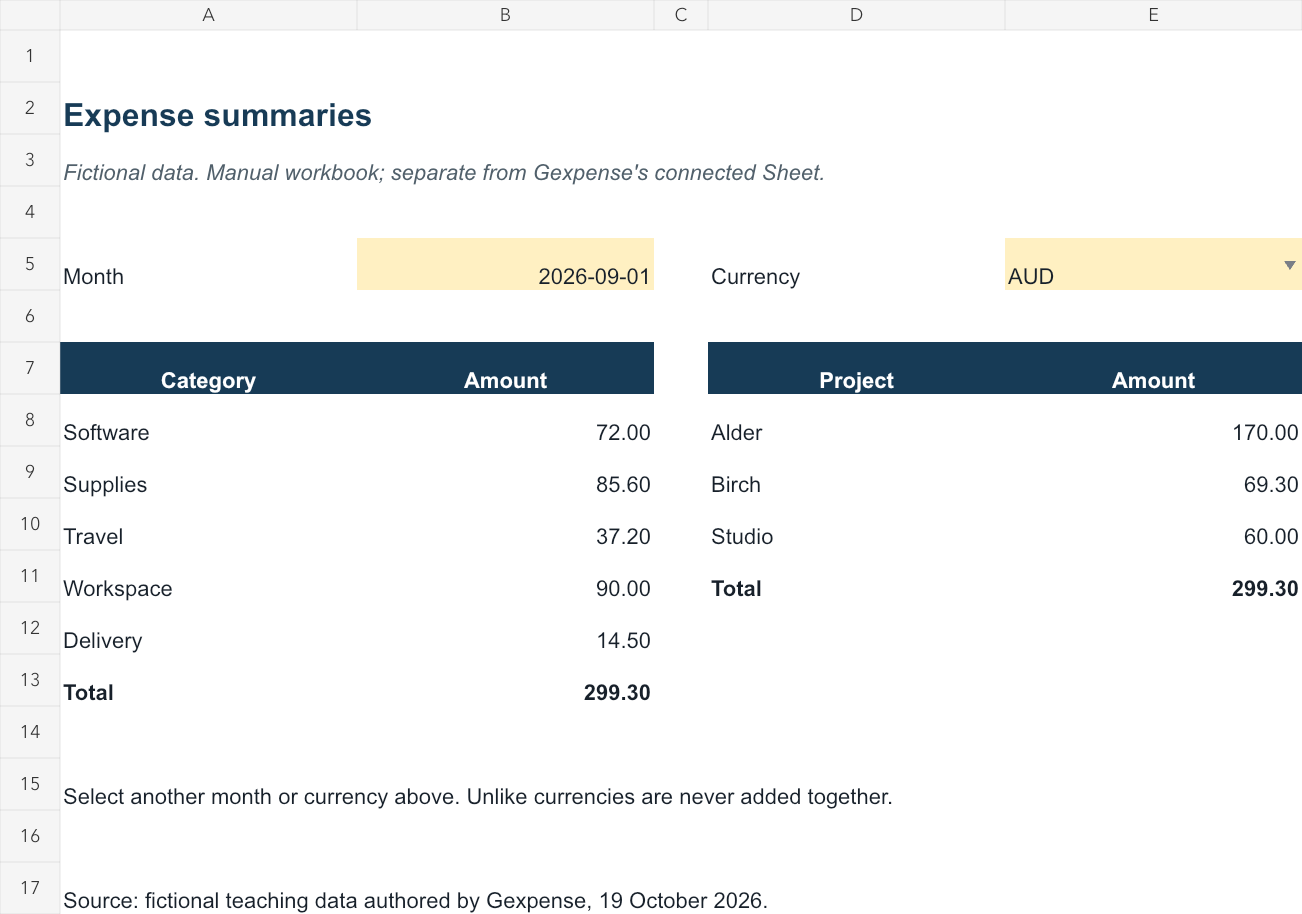
See how the workbook's category formula works
B8 uses this formula with the category name in A8:
=SUMIFS(Expenses!$H$2:$H$13,Expenses!$E$2:$E$13,A8,Expenses!$G$2:$G$13,$E$5,Expenses!$B$2:$B$13,">="&$B$5,Expenses!$B$2:$B$13,"<"&EDATE($B$5,1))
The formula filters category, currency and date range together. If you extend the example, extend every source range consistently and check the new rows. The provided workbook is a small worked example, not an automatically expanding tracker.
3. Alternatively, build a pivot table in Google Sheets
Work in a copy of the manual workbook. Add a Month header in K1 on Expenses. In K2, enter the formula below and fill it through K13:
=DATE(YEAR(B2),MONTH(B2),1)
Format that helper column as year and month. Each value still represents the first day of its underlying month.
Then:
- Select A1:K13, including the headers.
- Choose Insert → Pivot table and place it on a new sheet.
- Add Category under Rows and Month under Columns.
- Add Amount under Values and summarise it by SUM.
- Add Currency as a filter and select AUD for this view.
Google's pivot-table guide explains the source headers and row, column and value controls. Check that the amount uses SUM rather than a count. If it is counting values unexpectedly, investigate whether the imported amounts are text.
The workbook's supplied Summary uses formulas, not a prebuilt pivot. Excel users can create their own PivotTable using Microsoft's version-specific instructions.
4. Trace a surprising total back to its rows
If Supplies looks too high, inspect the rows contributing to it. In the example, September includes two separate AUD 42.80 purchases. Their different references explain AUD 85.60. A repeated amount alone does not show a duplicate.
In Google Sheets, double-clicking an appropriate pivot value can reveal its contributing source rows, as described in the official pivot guide. With the formula summary, filter the Expenses source by the same month, currency and category and review the entries directly.
Updates inside a pivot's selected source range can refresh its result. New rows outside that range need the source selection extended. A zero result needs checking against the source rows and conditions; it does not establish that your records are complete.
5. Turn the summary into a report when needed
Keep this working view for exploring the records. When someone needs a fixed period copy, follow the monthly report guide, which includes the completed example PDF.
Before sharing, review potential duplicates, unclear categories and missing originals. Gexpense can generate reports from saved expenses, while receipt scanning and reviewed filing reduce the repeated work of building those records. See its current workflow if capture and filing are your next bottleneck.
Frequently asked questions
Why is my pivot counting amounts instead of adding them?
Check whether the source amounts are numeric and whether Values is set to SUM. Review imported text or separators before changing the summary.
Will new rows always appear in the total?
Only rows inside the formula or pivot source range are included. Extend the range when needed and verify the total against its source rows.