
Receipt organisation
Save Gmail receipts with ChatGPT
Ask ChatGPT to save Gmail receipt PDFs in your Google Drive and record their details in Google Sheets. Three simple steps.
By Pengwu · · 3 min read
The takeaway
Connect Gmail and Gexpense in a supported ChatGPT account, request receipt PDFs and review each save. Ask again for the next batch.
You can save Gmail receipt PDFs through ChatGPT when Gmail and custom connections are available on your account. After approval, Gexpense stores the original in your connected Drive folder and the expense in its connected Sheet. This is an on-demand workflow, so it does not monitor your inbox in the background.
Use ChatGPT in your browser for the steps below. If your account lacks those connection controls, download the PDFs and use the receipt workflow directly.
1. Set up Gexpense
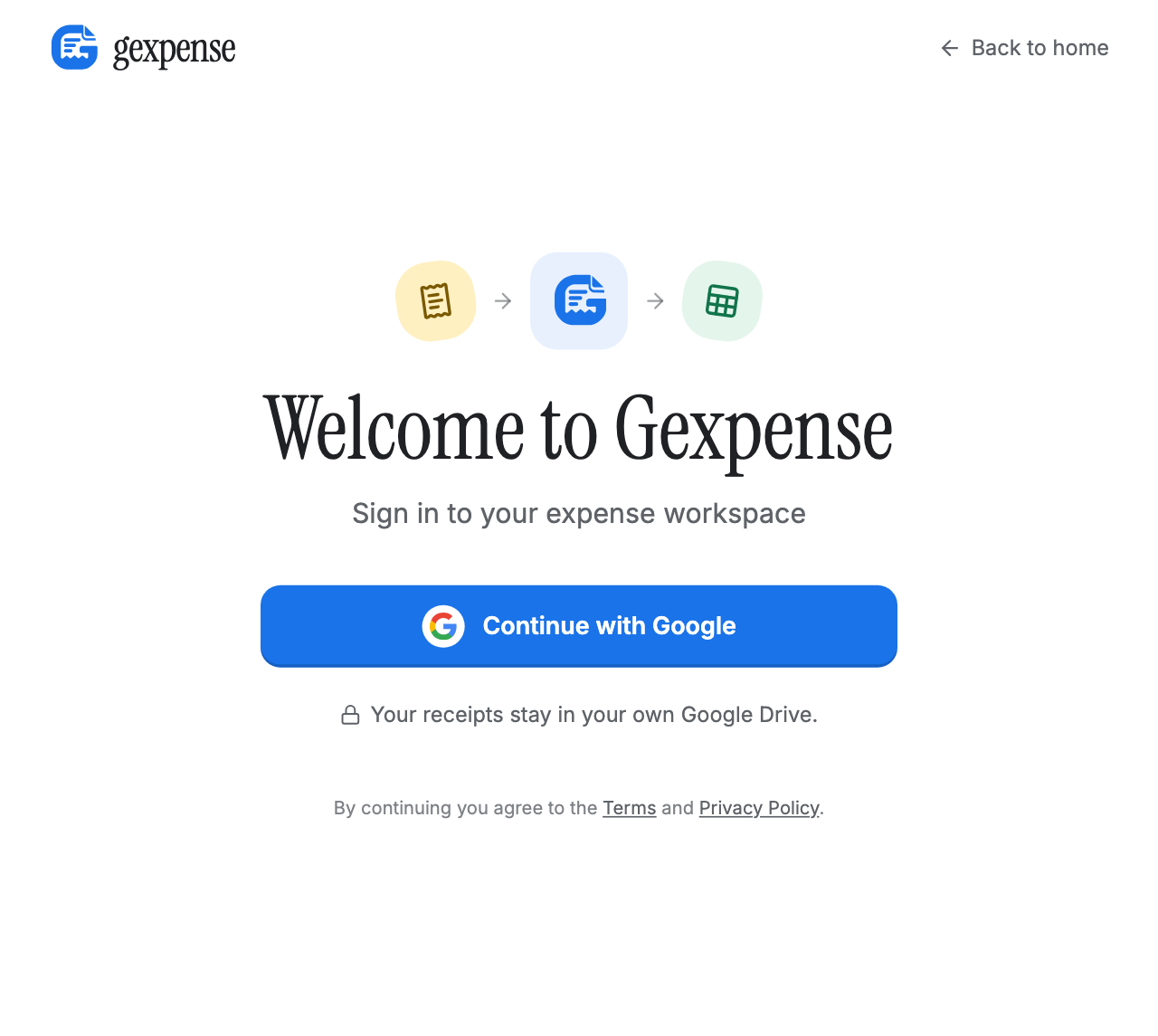
Sign in to Gexpense with Google. Wait for Your expenses; your receipt folder and spreadsheet are ready.
2. Connect Gmail and Gexpense
- Choose Gmail → Install and sign in to your email account.
- Choose + → Add custom MCP server and enter:
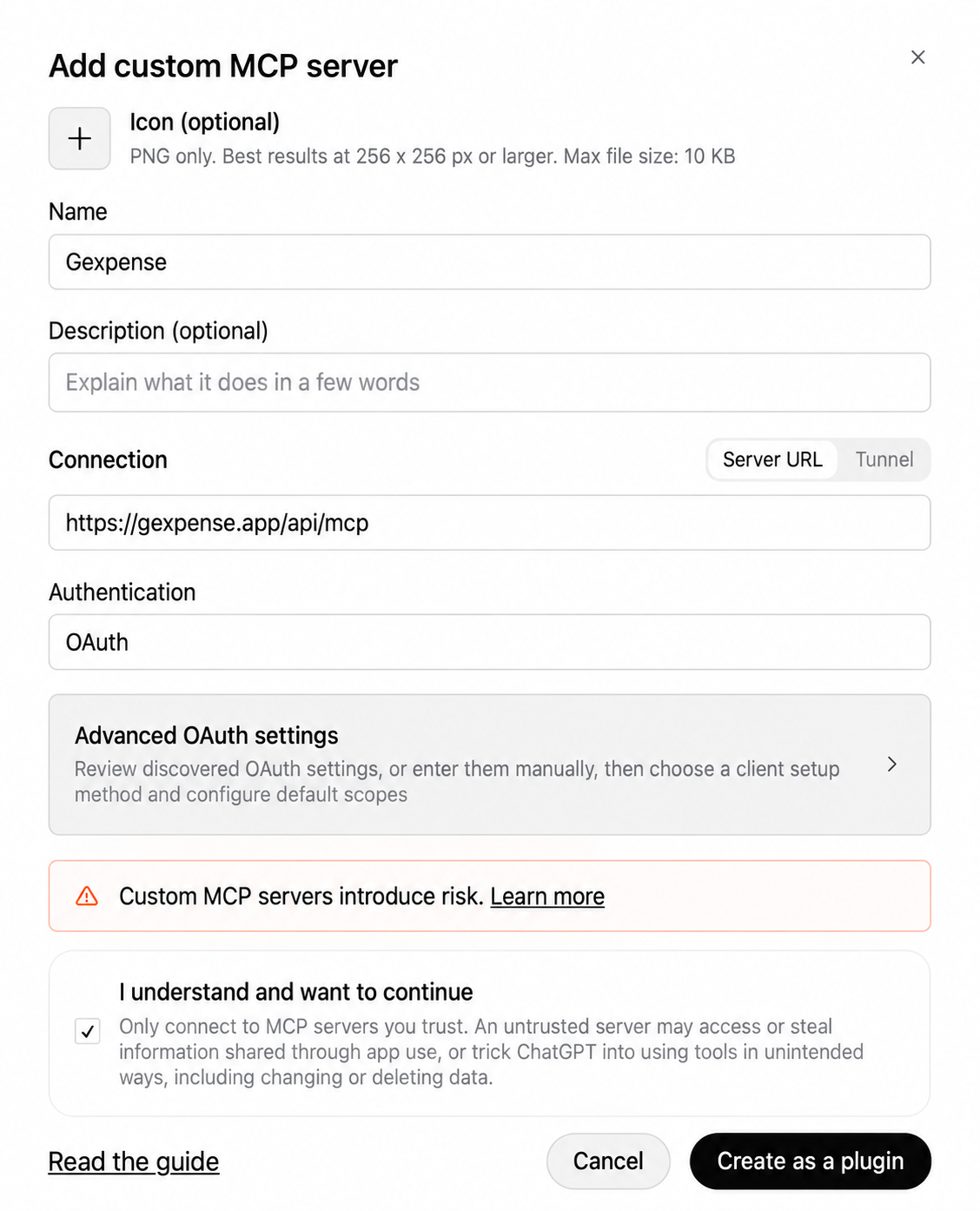
https://gexpense.app/api/mcpAccept the warning, choose Create as a plugin and install it. Sign in to your Gexpense account and approve access.
If asked for client details, leave optional credentials empty and choose Dynamic client registration.
3. Ask ChatGPT to save your receipts
Start a new chat, select @Gmail and @Gexpense, then paste this message:
Find receipt PDFs in my Gmail from the last 30 days and save them to Gexpense. Keep the original files, skip duplicates and ask me about missing details before saving.Review and approve
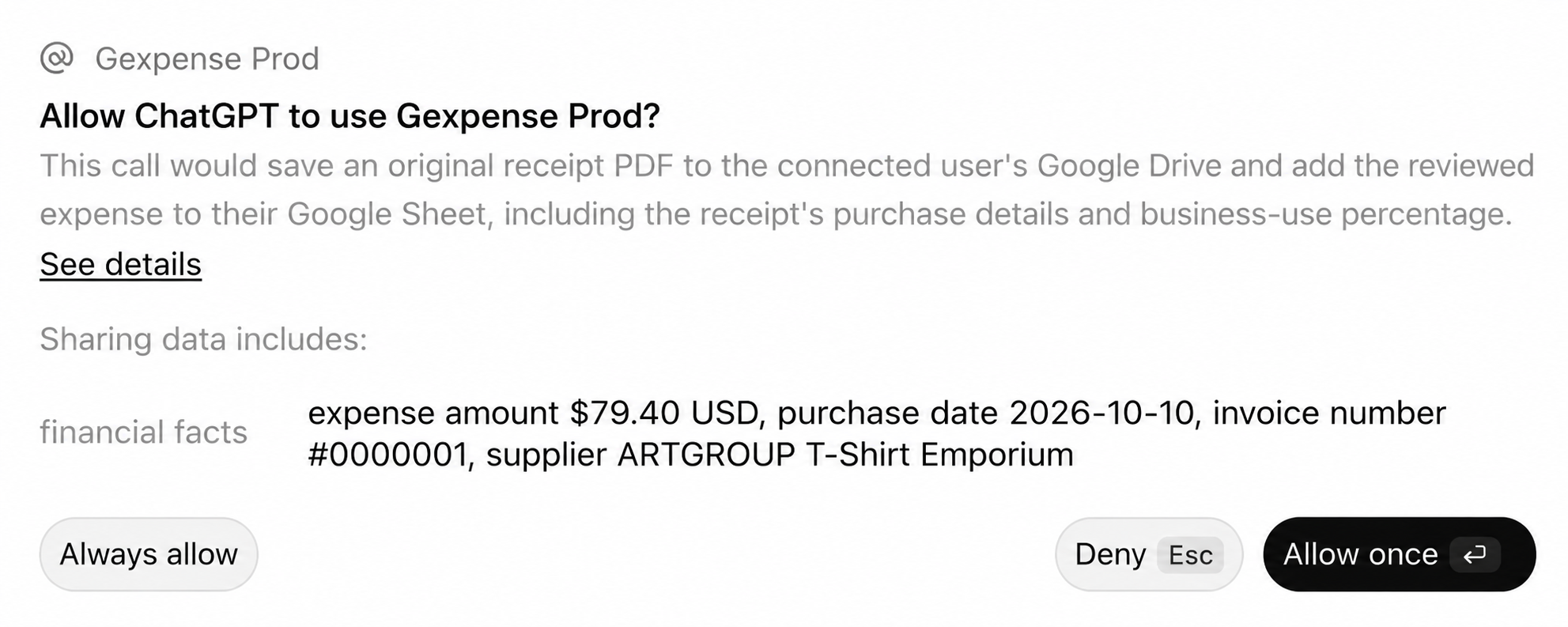
Check the details and tell ChatGPT if a receipt is personal or partly for work. Choose Allow once when you're ready to save.
Open your saved receipts
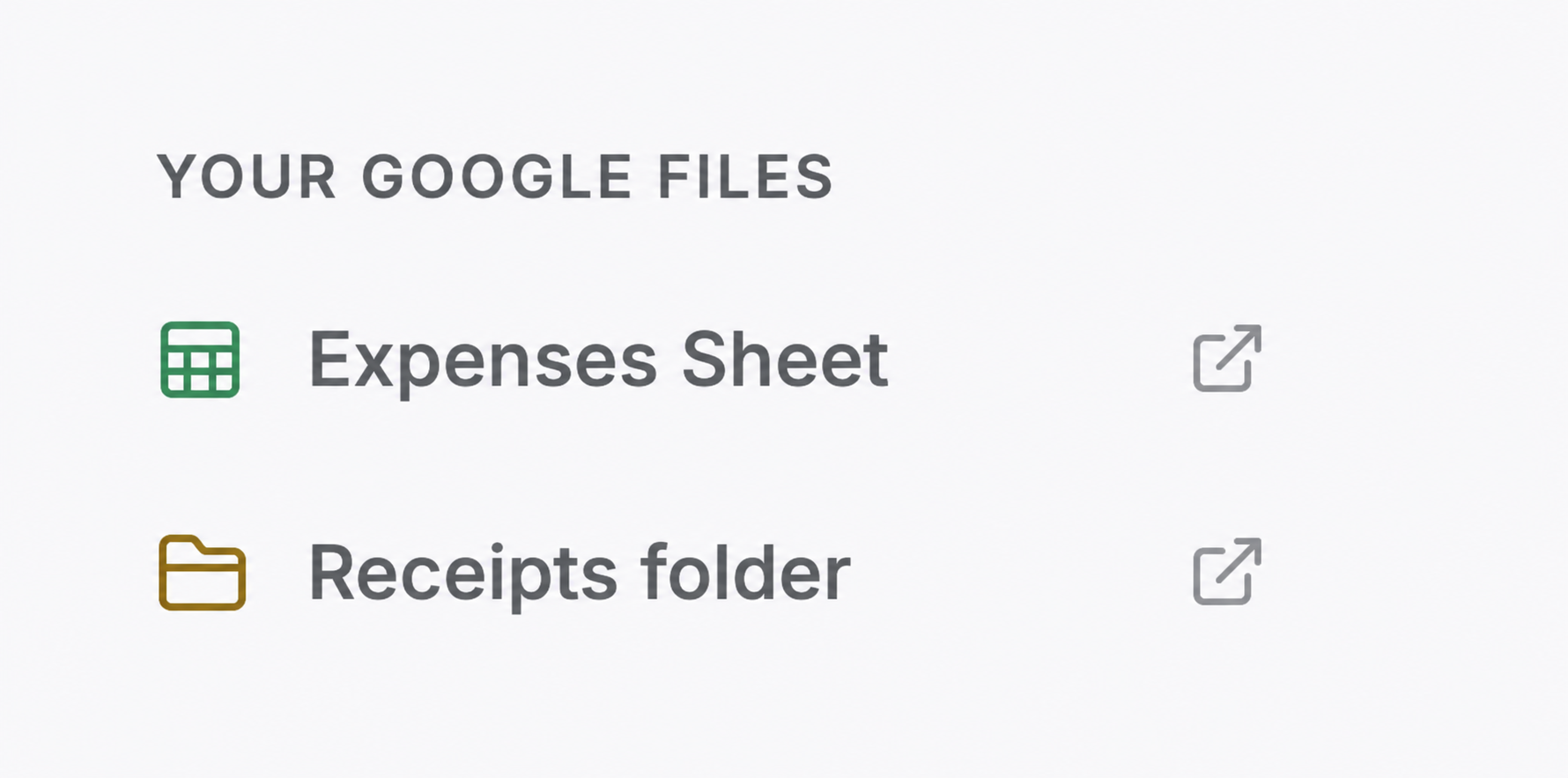
In Gexpense, choose Expenses Sheet for the expense details or Receipts folder for the original PDFs.
Ask again whenever you have more receipts to save.
4. Watch the demo
Silent demo: saving a PDF manually attached from Gmail.
Frequently asked questions
Does this run in the background?
No. Ask ChatGPT for a batch when you want to collect receipt PDFs, then review and approve the saves. Gmail and custom connections must be available on your account.
What if a PDF will not transfer?
Download it from Gmail and attach it to the chat, as in the demo. Check that Gexpense has scan allowance before retrying.