
Receipt organisation
How to create a monthly expense report
Turn reviewed expenses into a monthly report with separate currency totals and receipt references. Includes a fictional workbook, CSV and finished example PDF.
By Pengwu · · 5 min read
The takeaway
Choose a period and currency, check the source rows, then export a report the reader can trace back to the evidence.
A monthly expense report groups reviewed purchases for a chosen period. You can prepare one in Excel, Google Sheets or reporting software.
Try the category summary
Change the month or currency, then open the source rows behind the total. Currency groups are kept separate.
AUD 299.309 recorded entries in this sample selection
- WorkspaceAUD 90.00
- SuppliesAUD 85.60
- SoftwareAUD 72.00
- TravelAUD 37.20
- DeliveryAUD 14.50
Show included source rows
- E002 · CloudKite Example2026-09-02 · Studio · AUD 24.00Original reference: R-002.pdf
- E003 · Transit Example2026-09-03 · Alder · AUD 18.60Original reference: R-003.pdf
- E004 · Paper Trail Example2026-09-05 · Alder · AUD 42.80Original reference: R-004.pdf
- E005 · Paper Trail Example2026-09-05 · Birch · AUD 42.80Original reference: R-005.pdf
- E006 · FormDesk Example2026-09-10 · Birch · AUD 12.00Original reference: R-006.pdf
- E007 · Workshop Space Example2026-09-11 · Alder · AUD 90.00Original reference: R-007.pdf
- E008 · WebHost Example2026-09-15 · Studio · AUD 36.00Original reference: R-008.pdf
- E009 · Parcel Example2026-09-20 · Birch · AUD 14.50Original reference: R-009.pdf
- E011 · Transit Example2026-09-30 · Alder · AUD 18.60Original reference: R-011.pdf
Fictional practice data. Changes stay in this example; no records are saved.
Download the example workbook, source expense CSV and finished example PDF. All names, entries and document references are fictional. The reference labels are not attached receipts. The workbook is a manual example, separate from Gexpense's managed Sheet.
1. Set the report's purpose, dates and currency
Decide whether the report is for your own spending review, a client discussion or an accountant handoff. Ask the recipient about their required format and additional documents. An expense report is one part of the records they may need.
The example covers 1–30 September 2026 in AUD. Its source list also contains an August purchase, an October purchase and a September purchase in USD. Those rows stay in the source, but they do not belong in the September AUD total.
Name the period explicitly. “September expenses — AUD — prepared 19 October 2026” is easier to interpret later than “latest report”. Changing a currency label does not convert the underlying amounts.
2. Check the entries before summarising
Give each entry an ID, purchase date, supplier, description, category, project if useful, currency, amount and original reference. Confirm the amount against the supporting document and check unclear descriptions. Categories here organise the report; they do not establish deductibility.
In the example, E004 and E005 are separate purchases from the same supplier on the same date, both for AUD 42.80. They refer to R-004 and R-005. Removing one because its date and amount repeat would understate the report. Use the duplicate review guide when your source has repeated entries.
Leave unresolved records visible in a question list. A tidy summary should not hide a missing receipt or an uncertain amount. If you are starting from photos or PDFs, the receipt-to-CSV converter can produce editable rows for you to check; it does not save originals to Drive or populate a connected Sheet.
3. Build a summary with traceable totals
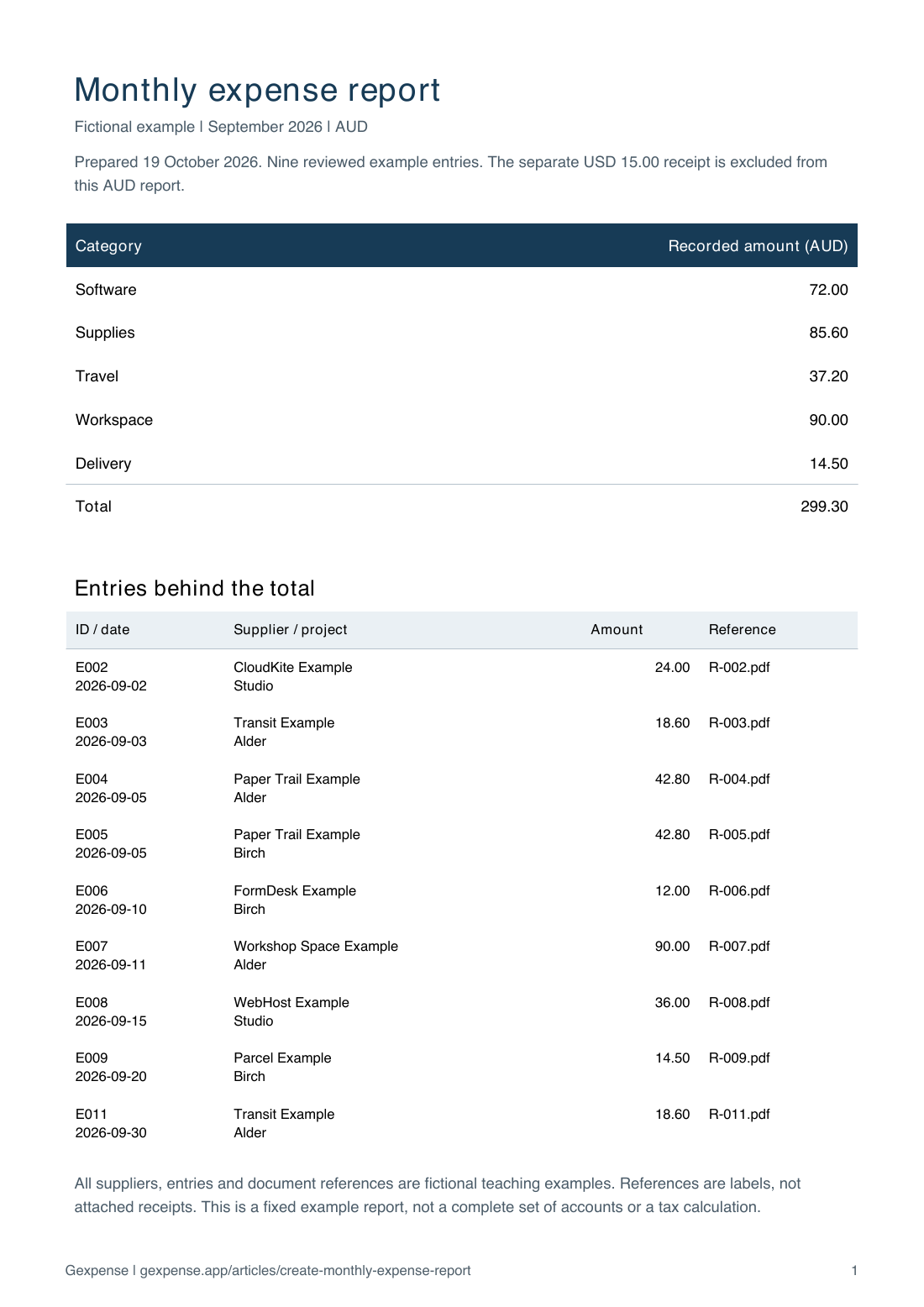
Open the workbook's Summary tab. Month is in B5 and currency in E5. With September and AUD selected, the nine included entries total AUD 299.30. The interactive example above uses the same source CSV; expand its source rows to inspect the entries.
The USD 15.00 software purchase needs its own currency group. It is not another AUD 15.00. Keep the original currency and ask your accountant about any reporting-currency treatment you need.
The summary must retain a route to the entries behind it. Our month and category summary guide explains the workbook's formulas and a Google Sheets pivot-table alternative.
4. Export a readable copy and check the result
Keep the working workbook if the recipient needs to inspect or edit rows. Export a PDF when they need a fixed, readable view. Google documents the Excel, PDF and CSV download options in Sheets. CSV is useful for exchanging a table; it does not preserve every workbook tab and presentation feature.
Open the exported file yourself. Check that the period and currency are visible, long supplier names are readable, all relevant rows are included and the total matches the working summary. Test receipt links using the intended recipient's account where practical. A link printed in a PDF does not grant access to its destination.
The downloadable example PDF lists the nine AUD entries behind AUD 299.30. It is a fixed teaching example, not a screenshot of customer records or proof that the fictional receipts exist.
5. Explain what the report has not resolved
Comparing purchase records with bank transactions can reveal missing documents and timing differences. It is a separate review from grouping the report by category. Matching grand totals alone does not establish that every entry is correct. Use the bank and receipt comparison walkthrough to keep exceptions visible.
For your accountant, include the original files, requested statements and unresolved questions alongside the report. The accountant preparation guide compares local folders, cloud sharing and receipt software for that handoff.
Use the same reviewed records next month
For a small collection, a maintained spreadsheet may be enough. Gexpense's current reporting feature can create PDF, XLSX and CSV reports from saved expenses, with a selected period and optional project/category filters. Those exports use your recorded expenses; they do not calculate tax or currency conversion.
If repeated entry and filing are the time-consuming part, the Gexpense receipt workflow connects reviewed expense rows with their originals in Google Drive. Keep the report review and accounting decisions in your routine whichever method you choose.
Frequently asked questions
Can I total different currencies together?
Keep separate currency groups unless an appropriate conversion method has been agreed and documented. Changing the report label does not convert the source values.
Should I send only the total to my accountant?
Ask what they need. Keep the source entries, originals and unresolved questions available alongside the summary so each amount can be checked.