
Receipt organisation
Why your bookkeeping data should be easy to take with you
Why access to original receipts, usable exports and straightforward sharing matters when choosing bookkeeping software, including Gexpense's current Google storage approach.
By Pengwu · · 3 min read
The takeaway
Try opening, sharing and downloading a few complete expense records before you depend on a bookkeeping system.
Portable bookkeeping records let you open the expense rows, original receipts and their connection outside the app where you entered them. Test those three parts before relying on a system. A downloaded CSV alone does not contain the supporting files.
A useful export includes the evidence
A spreadsheet of amounts is only one part of an expense collection. Receipt links can stop working when an old account closes or a local file stays on a laptop the accountant cannot access.
| Keep | Check |
|---|---|
| Expense rows | The downloaded table keeps the fields you need. |
| Original receipts | You can open and download the supporting files. |
| Their connection | You can match an expense to its evidence outside the app. |
A CSV exchanges a table; it does not package a folder of linked receipts. Test both parts of the collection.
Share the records and receipts
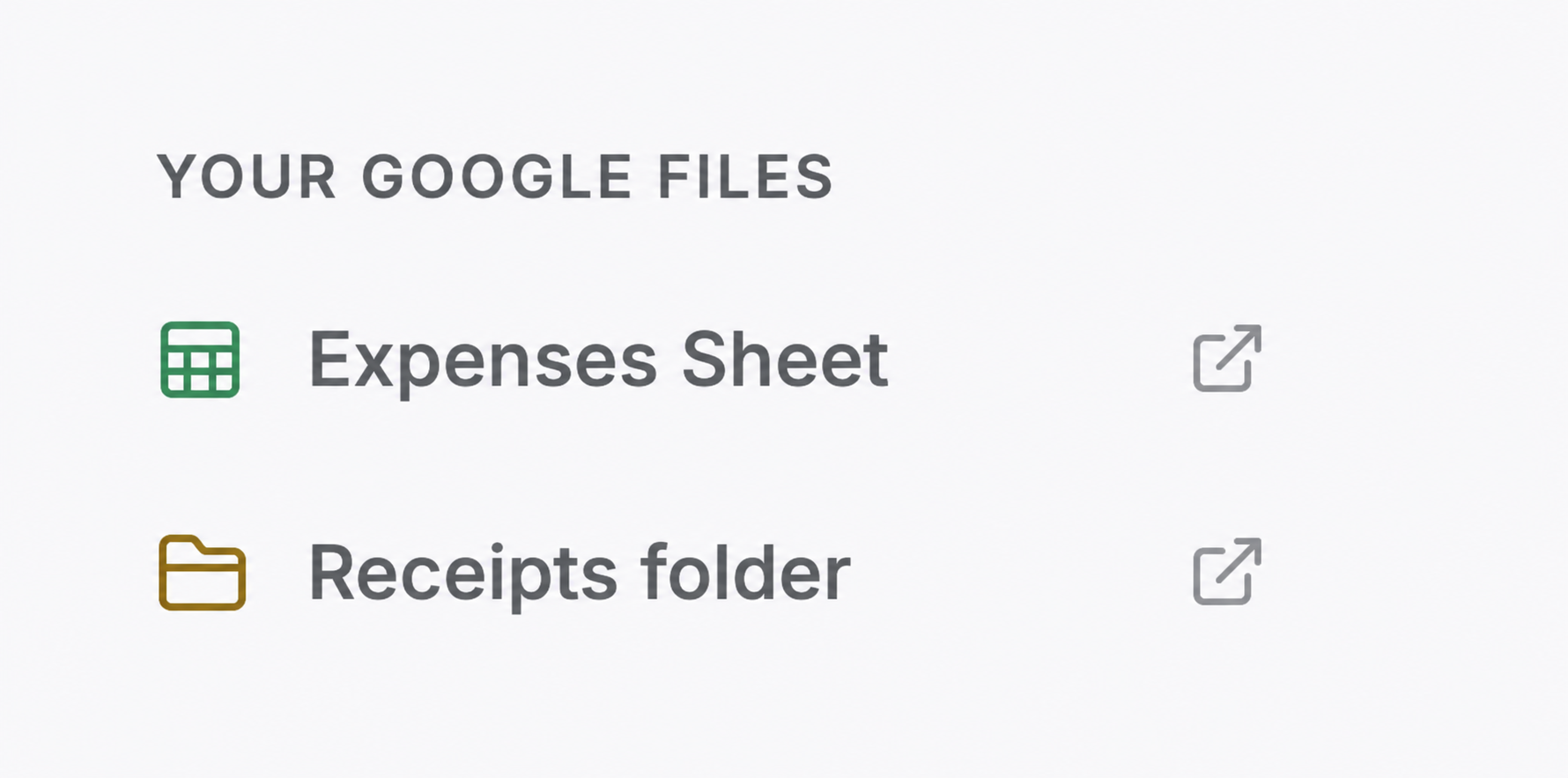
Gexpense's current storage approach puts saved expense details in your connected Google Sheet and original attachments in your connected Google Drive folder. You can open those resources in your Google account and use them alongside the app.
For accountant access:
- Open the Sheet and use Google's Share control to add the named recipient and choose their access level.
- Check sharing for the receipt folder too. Sheet access does not automatically grant access to separate linked receipts.
- Ask the recipient to test an expense row and its original file.
Google's sharing documentation explains the roles and work or school account restrictions. A shared working folder also serves a different purpose from a dated report handed over as a fixed copy.
Protect access and keep useful copies
Direct access still depends on your account and provider:
- Protect access. Secure the account and remove sharing permissions when relationships change.
- Test a download. Open a copy using Google's download and format options.
- Keep an appropriate backup. Changes to synced files can spread across devices. Google's streaming and mirroring explanation describes that behaviour.
Direct access also does not mean an app never processes data. Gexpense processes receipts for scanning and maintains account and service records. Its Privacy Policy explains those activities, providers and retention. The Terms describe content ownership and the user's responsibility for backups.
Keep the next handoff simple
A useful system should support the next step: an accountant's review, a different spreadsheet or a change of software. The current Gexpense product uses connected Google Drive and Sheets. The test is whether the collection stays usable when your workflow changes.
Our Drive organisation article covers the manual side of connecting files and rows. The product workflow shows how Gexpense helps with reviewed entry and filing. Whichever approach you choose, try the handoff before you urgently need it.
Frequently asked questions
Does a CSV contain my receipt files?
No. Test the exported rows and the separate original files, including how you match them outside the app.
Is syncing a separate backup?
No. Changes can propagate across synced devices. Keep an appropriate backup or dated handoff copy and test access independently.