
Receipt organisation
What bookkeeping automation should take off your plate
A practical view of bookkeeping automation: reduce repeated entry and filing, keep the original evidence connected, and make the remaining review easier.
By Pengwu · · 3 min read
The takeaway
Automate repeated entry and filing. Keep the original visible and the review in your hands.
Useful bookkeeping automation reduces repeated typing and filing while preserving review. It should leave a checked expense connected to its original, with unresolved questions visible. In Gexpense, those saved records live in the connected Google Sheet and Drive folder.
The work beyond the scan
Imagine a freelance designer receives a software invoice. Extracting the date and total is useful, but the completed job has several parts:
| Task | Useful result |
|---|---|
| Extract | Suggested supplier, date and amount. |
| Review | Correct details and a note about the work purpose. |
| Save and link | An expense record connected to its original invoice. |
Keep review in the workflow
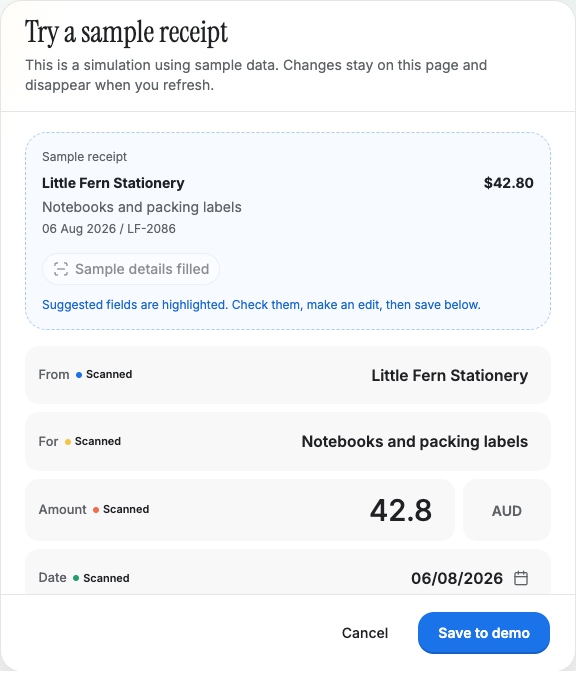
A suggested amount can be wrong. A clear receipt can still leave a question about a refund or a shared purchase. Gexpense keeps scanned values editable so you can check the evidence, add context and decide when the expense is ready to save.
Save the record and original
Saving in Gexpense puts the original in your connected Google Drive folder and the reviewed details in its connected Google Sheet, with a receipt link in the expense record.
This replaces separate filing and entry actions. It does not create year-and-month folders, reconcile bank transactions or decide tax treatment.
The receipt workflow shows the saved result. The standalone CSV converter has a narrower purpose: editable extracted rows for a one-off conversion, without saving files to Drive or rows to your connected Sheet.
Email receipts, when you ask
With Gmail and custom connections available in your ChatGPT account, the Gmail receipt workflow can help collect supported PDFs on demand and save reviewed records through Gexpense. It is not native background inbox syncing. Missing supplier emails and unsupported documents still need attention.
Check the work that remains
After trying a workflow, check four things:
- Can you compare suggested values with the original?
- Does saving finish the filing step?
- Can the next person open the evidence?
- Are unresolved items still visible?
The expense-tracking article covers the broader habit around capture, review and sharing. Useful automation makes that routine easier to maintain.
Frequently asked questions
Which steps does Gexpense automate?
It suggests receipt fields and, after your review and save, files the original in the connected Drive folder and records the linked expense in its connected Sheet.
Which decisions stay with me?
Checking suggestions, explaining work purpose, comparing payment records and resolving accounting or tax questions. Gexpense does not connect to your bank or decide deductions.